
Music
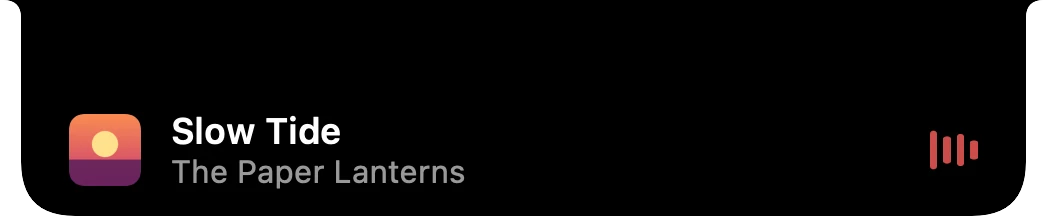
The album art on the left and bars on the right that move with the actual sound.
Music, timers, notices and handy tools, right at the top of your screen.
The live notch
The black notch at the top of your screen becomes a live strip that shows what's going on, without getting in the way.
The album art on the left and bars on the right that move with the actual sound.

A ring and the time left, next to the album art when music plays too.

A turning mark while they work, and how long they've been at it.

A download arrow while a file comes in, and a notice when it's done.

A calendar icon and the minutes left before it starts, with a Join button for video calls.
Notices
Clean, glanceable pop-ups that drop from the notch, in place of macOS's own.
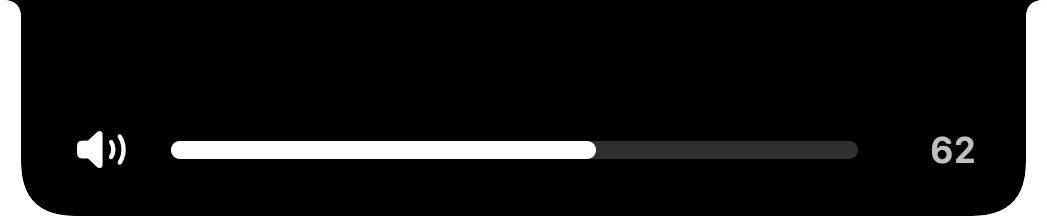
A clean level bar in place of the system pop-up.
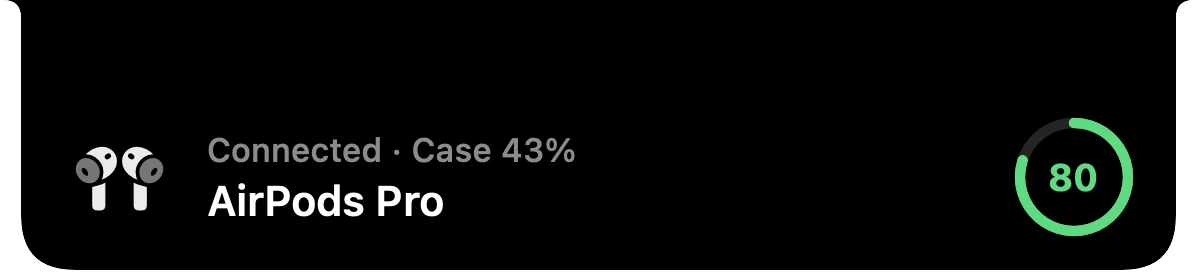
Who just connected, with a battery ring when the device reports one.
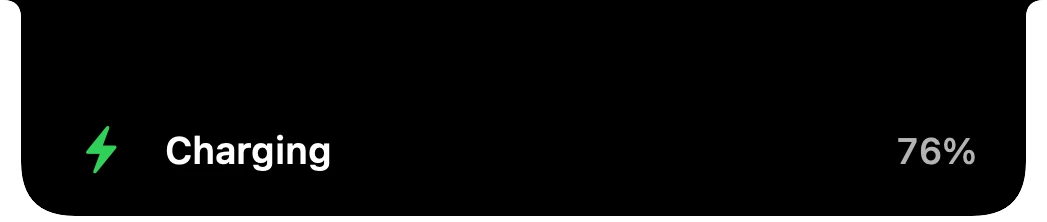
Plugged in, unplugged, running low or fully charged.
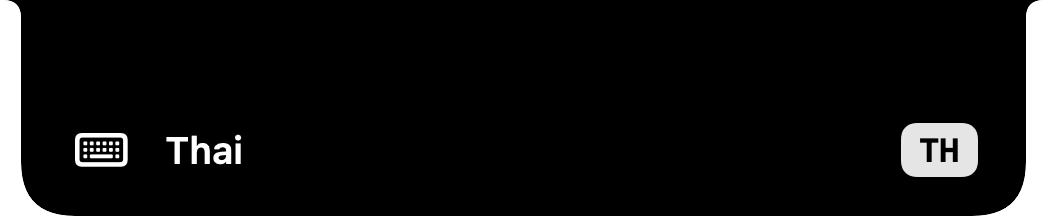
See which input you just switched to, and when Caps Lock goes on.
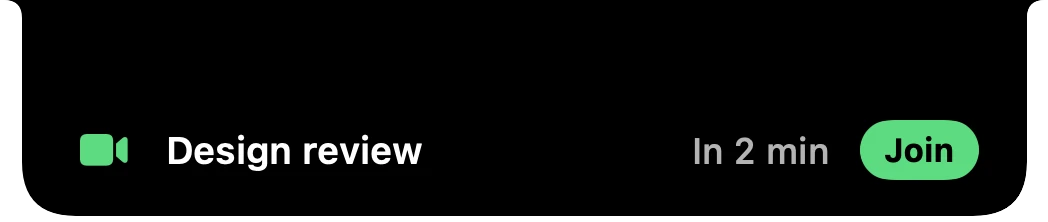
A heads-up before it starts. Click to join the call.

Know the moment your AI agent finishes, and which session it was.
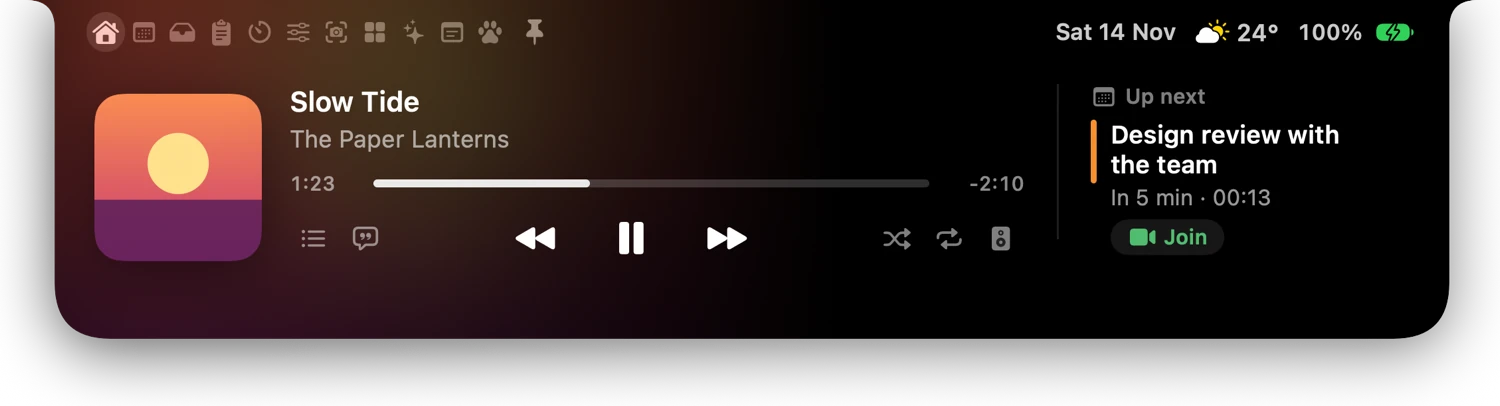
The open notch
Point at the notch, or press ⌃⌥N, and it opens into a mini player and a set of handy pages.
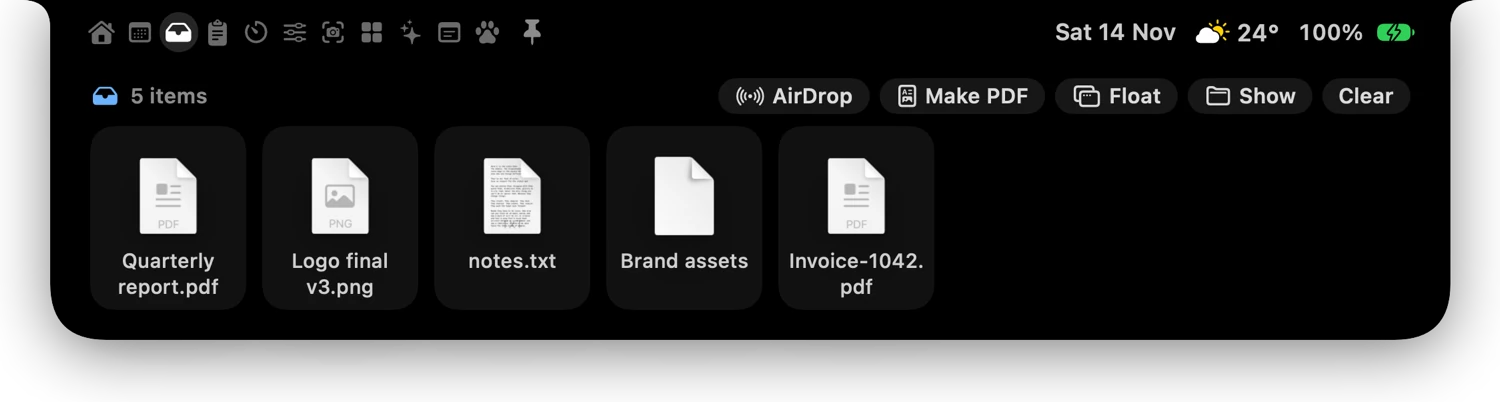
Drop files on the notch, then drag them out wherever you need them. AirDrop them too.
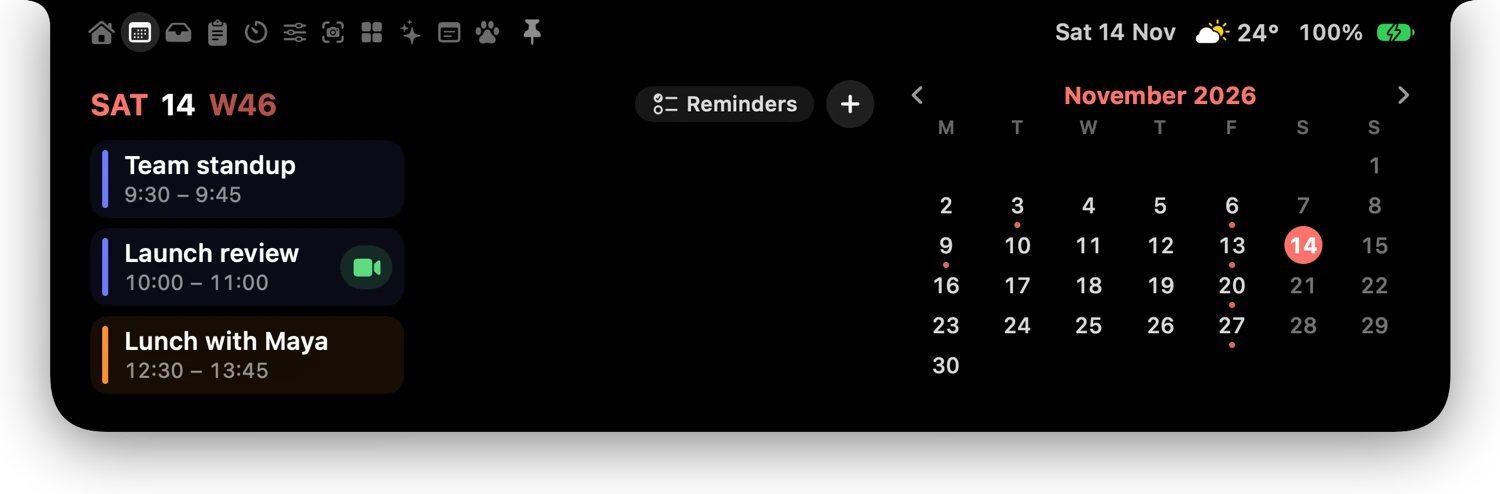
Today's events, reminders to tick off, the month, and new events in plain words.
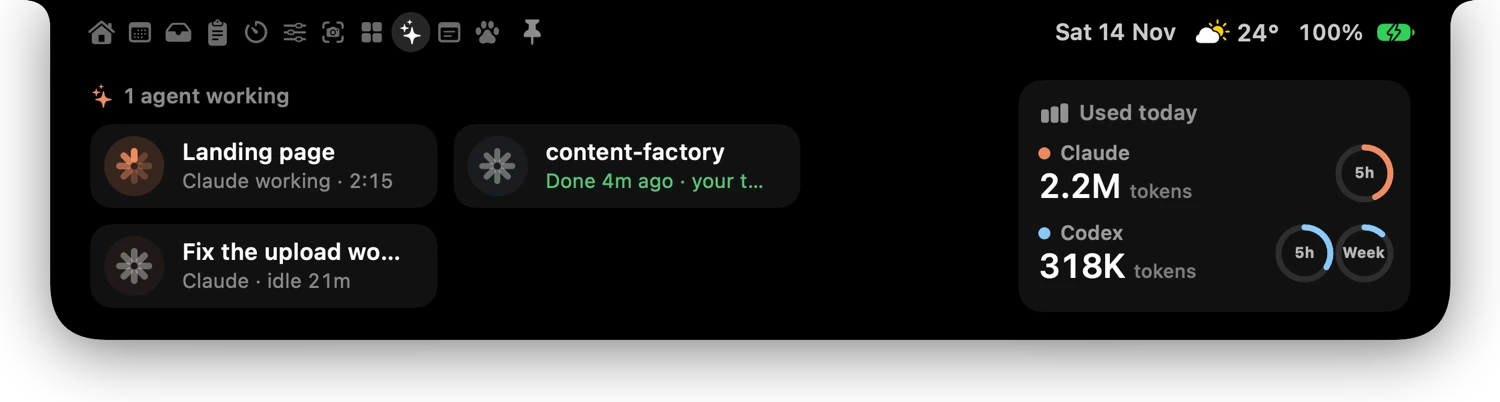
Which Claude Code and Codex sessions are working, which are done, and what they used today.
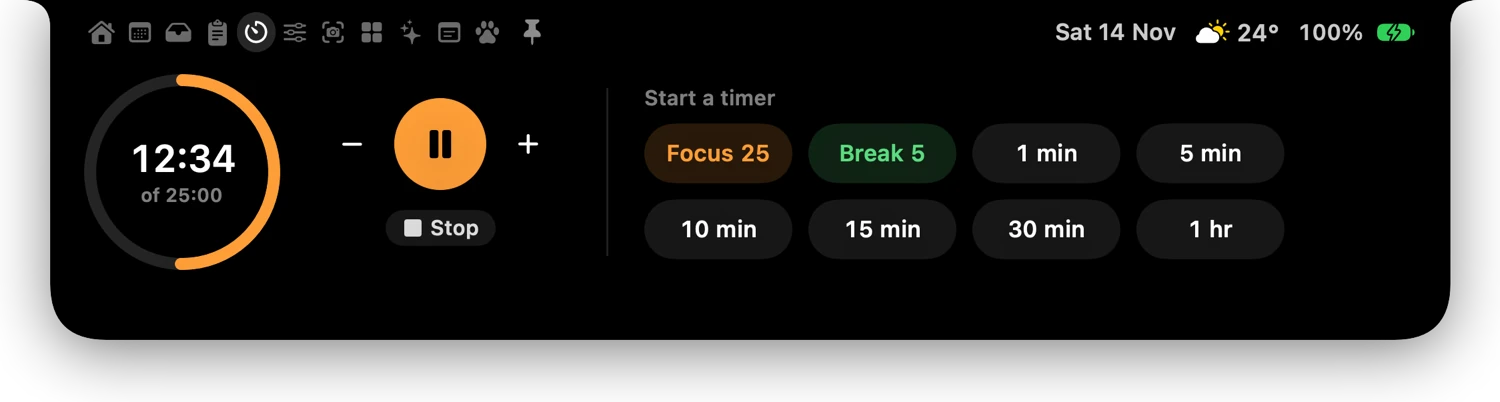
One click on a time, plus Focus and Break sessions that hand over to each other.
Tools
Capture, copy and arrange things without leaving what you're doing.
Press ⌘⇧2, pick an area or a window, then mark it up with arrows, boxes, text, blur and crop.
Record an area or a window, with the Mac's sound and your microphone if you like. Save as a movie or a GIF.
Drag over any text you can see, even in a picture, and it's copied.
Point at any pixel and its colour code is copied, ready to paste.
Halves, thirds and quarters with ⌃⌥ shortcuts, snapping, and a window switcher on ⌥Tab.
⌃⌥Space finds apps and files, runs Orbia's actions, does sums and finds emoji.
Looks
Keep the notch classic black, or let the open notch, notices and panels turn to glass that lets your desktop show through.
The most see-through. Your desktop shows through and bends at the edges.
See-through with a light tint, so text stays easy to read. The default.
Darkly tinted glass, the easiest to read over anything.
On macOS 26 and later, Orbia uses Apple's own Liquid Glass. The closed notch always stays black, to match the camera.
Pricing
 ORBIA
$9.99once
Payment and sales tax are handled by Polar.
Needs macOS 14 or later and a Mac with Apple silicon.
FAQ
The trial starts the first time you open Orbia and lasts 7 days, with everything included. When it ends, Orbia asks for a license key. Buy it once and keep using it.
It's on your Orbia purchase at Polar; the link to it is in your receipt email. In Orbia, open Settings → General → License and enter it there.
One license works on 2 Macs. On the old Mac, open Settings → General → License and choose Remove from This Mac to free its spot. If the old Mac is gone, remove it from your purchase page at Polar instead.
Orbia checks for updates by itself and installs them with one click, so you don't need to come back here. Updates are included in the price.
Orbia needs macOS 14 Sonoma or later and a Mac with Apple silicon (M1 or later). It's made for Macs with a notch; on other screens it hangs from the middle of the menu bar.
No. Playing, pausing, skipping, the album art, the moving bars and Spotify's own lyrics work without it. Connecting adds Spotify's queue and Liked Songs; here's how.